
Add Services to Google Business Profile: Shop Guide
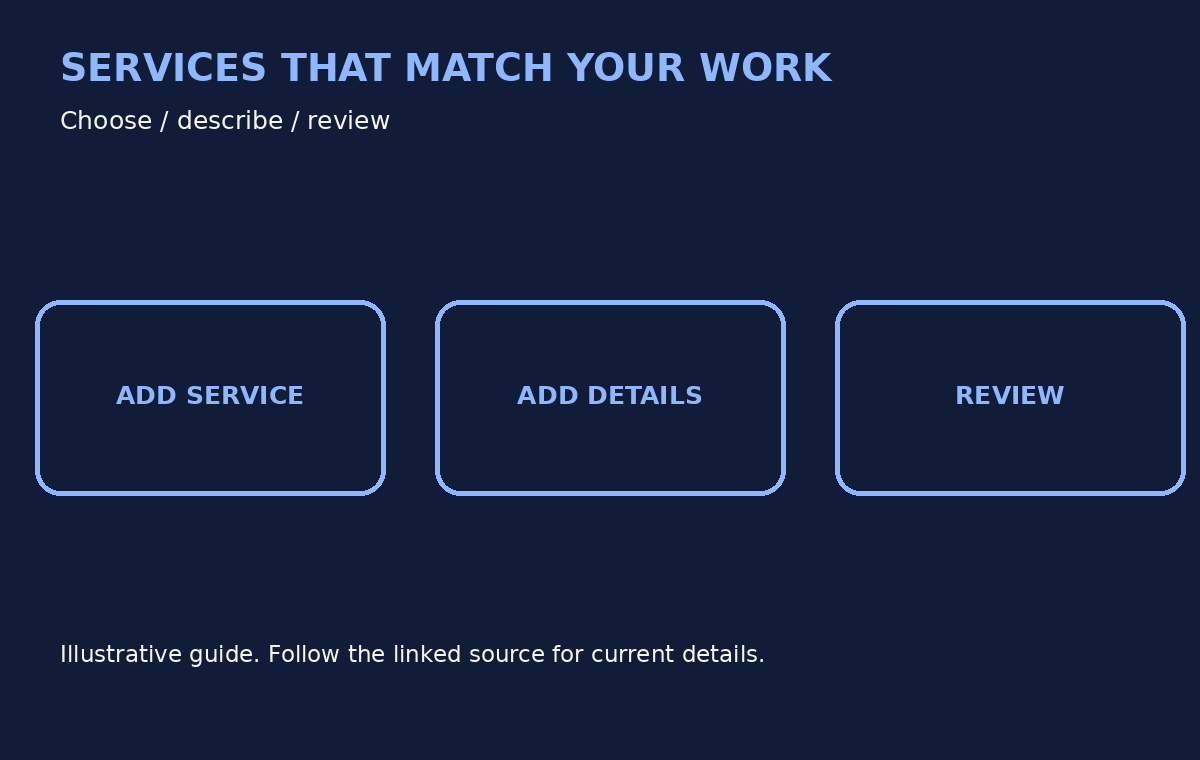
Customers should be able to understand what your business actually does. Google's services editor can help eligible businesses list their offerings, but the option depends on the business category. It is not a promise of ranking or enquiries.
Who can use the services editor?
Google says businesses in certain categories, including service businesses, may have the option. If you do not see Edit services, do not add a false category just to unlock it. Keep the profile category and services tied to the work you genuinely provide.
How do you add a service?
Open your Business Profile, choose Edit services, select the services you offer and save. Google may show suggested services for your business type. If an appropriate service is missing, the editor may offer Add more services and Add custom service.
Step by step: add, edit and group services
These steps follow Google's current help page for the services editor (as of Oct 2026). Button names can look slightly different on a phone, in the Google Maps app or on a computer, so look for the same words rather than the same position on screen.
Add services from the suggestions
- Open your Business Profile while signed in with the Google account that manages it (Google's help links this step to business.google.com).
- Select Edit services.
- Tick the services you actually offer. Google gives suggestions based on your business type; for a plumbing business its own examples are "Install faucet" and "Repair toilet".
- Select Save.
Add a service that is not in the suggestions
- Open Edit services and choose Add more services.
- If your service is still not listed, select Add custom service and type a plain name.
- Select Save.
Edit details or remove a service
- In Edit services, select the service you want to change.
- Add details such as a description and price where the editor offers them.
- To take it off the list, select Delete service.
- Select Save.
Group services under a category
If you offer different types of work, Google lets you group services into categories. In Edit services, choose Add a new business category, pick from the available options, then select or add the services that belong under it and save. Only add a category that honestly describes the business.
What should go in the name and details?
Use a plain name for the service. Google warns against personal information, prices, phone numbers, profanity or gibberish in custom service names. Where the service detail editor allows it, you can add a description and price. Put accurate details in the right fields rather than stuffing the name.
What goes in each field?
| Field | What to write | What to avoid |
|---|---|---|
| Service name | A short, plain name a customer would understand, e.g. "Mobile screen replacement" | Phone numbers, prices, personal information, profanity or gibberish (Google rejects custom names like these automatically) |
| Description | What the service covers and any limits, in one or two simple sentences | Claims you cannot back up, or services you do not provide |
| Price | The real, current price if the editor shows a price field | Putting the rate inside the service name |
| Category | A category that matches the work you genuinely do | A wrong category picked only to unlock the services editor |
An example in plain customer language
Imagine a genuine plumbing business that installs faucets. First look for a relevant name in Google's suggested services. If you need a custom name, keep it simple, such as "Faucet installation". A name like "Best plumber call 999..." mixes the service, a promotion and a phone number, and Google tells businesses not to put phone numbers or prices in custom service names.
In the description, explain what the customer gets and what the job includes. Do not add work you do not offer just to appear in more searches. If there is a price field, enter the real current price there instead of in the name. This is an illustrative example, not a result from a real shop or proof of ranking.
Three checks before you save
- Truth: does the business offer this service today? Remove anything you have stopped doing.
- Name: can a customer understand it without an explanation? Remove phone numbers, personal details and promotional text.
- Details: are the description and price in their own fields? A name stuffed with everything is hard to read.
How do you check the result?
Review the saved profile as a customer and check for misleading wording. Remove services you no longer offer. A service may be highlighted for a relevant local search, but uploading a list does not guarantee visibility. For help organizing a genuine small-business online presence, see Pooja Digitech services; no results or lead guarantee is offered.
Where do customers see your services?
Google says a service may be highlighted on your profile when local customers search for something you offer, and that people using the Google Maps app can see your full list under "Services". Your services list can also matter after a job: when a customer reviews a service business, Google says they may be asked to choose the service they received, from your list and from common job types for similar businesses. Keeping the list accurate helps those reviews describe the right work. For how to answer those reviews, see How to Reply to Google Reviews for Your Small Business.
What if you do not see Edit services?
The services editor is offered to certain categories, not to every profile. A screenshot from another business is not proof that the same option should appear on yours, and choosing a wrong category only to unlock it is not the fix. Check your own profile's options against Google's current help page. A services list does not replace a working website, correct contact details and regular profile updates, and it does not guarantee enquiries.
Frequently asked questions
Can every shop use this editor?
No. Availability depends on category and the options on the profile.
Can I put my phone number in a custom service name?
Google tells businesses not to include phone numbers in custom service names.
Can I add prices to my services?
Yes, where the service detail editor offers a price field. Keep prices out of the service name itself.
Why did my custom service disappear or not save?
Google says custom services that break its policy are rejected automatically. Check the name for phone numbers, prices, personal information or random text, then try a plain name.
Where can customers see the full list?
Google says customers can view your full list under "Services" in the Google Maps app, and a relevant service may be highlighted when someone searches for it.
Related guides
- Google Business Photos: Choti Dukan ki Checklist
- Google Business Photos: A Small Shop Checklist
- Google par Holiday Hours Kaise Set Kare: Shop Guide
- Google Business Description: Write a Clear Shop Intro
Sources
- https://support.google.com/business/answer/9455399?hl=en
- https://support.google.com/business/answer/9950987?hl=en
Last verified: October 30, 2026.


Comments
Post a Comment